
Introducing More Granular Team Management#
Easily manage user access across multiple parts of the platform from a single view. The Verawood release extends the administrative console, introduced in the previous release for managing permissions over Content Libraries. Now renamed to the “Roles and Permissions Console”, it adds new roles that can be applied across Studio.
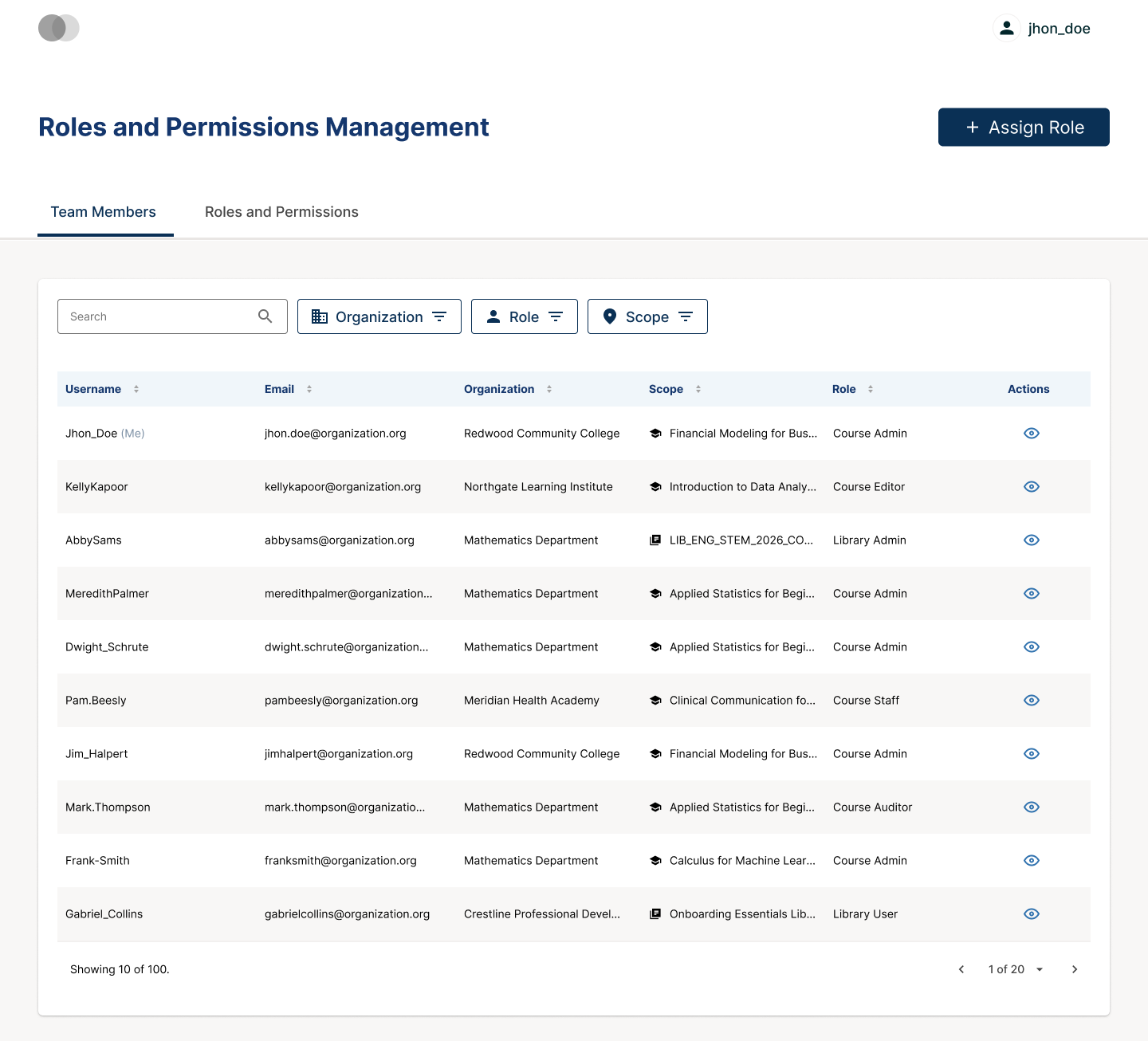
The Team Members tab of the Roles and Permissions console. This is the Admin view; you only see the role assignments associated with the course(s) and/or librar(ies) you have access to, not any other roles those users may have on other organizations, courses, or libraries.#
You can now assign two new roles, Course Admin or Course Staff, to one or multiple users and apply them at multiple levels (a specific organization, course, or library) — all in a single action. Granting a role at the organization level covers both existing courses and any courses created in that organization afterward.
This feature is opt-in and disabled by default. It can be enabled across your whole instance, or for one or more specific organizations or courses, and must be enabled by your site administrator.
New User Roles#
Course Admin is the new-system equivalent of the legacy Admin role: course team management through the Roles and Permissions console and full authoring access in Studio.
Course Staff is the new-system equivalent of the legacy Staff role: full course lifecycle management in Studio.
Course Admin and Course Staff are the new system’s equivalents of the legacy Admin and Staff roles for a course: same responsibilities, new assignment mechanism. For a full breakdown of what each role can do, see Course Authoring Roles Under the New Roles and Permissions System.
What’s Available in Verawood#
Unified interface: the Roles and Permissions console displays all role assignments in one place, filterable by role, organization, and scope.
Assign Role wizard: assign a role to multiple users and multiple scopes in a single action.
Organization-level assignment: grant a role to a user across an entire organization, including scopes created later.
User audit view: shows a user’s roles across every course and library you have permission to manage.
Filtered entry points: the console opens filtered to the context you came from, unfiltered from the Studio home page, or filtered to a single course or library when opened from there.
Scope and Impact#
When this feature is enabled, the platform supports both the legacy Instructor Dashboard roles (Admin, Staff, Limited Staff) and the new Course Admin / Course Staff roles at the same time. New roles apply according to the scope where the flag is enabled — platform, organization, or course.
The Roles and Permissions console is a place where you can examine the users who have access to your system - their “role”, and also where that applies (which “organization” it applies to, as well as the “scope” of the role - specific course(s) or librar(ies)). For example, in the following screenshot, we see two users - Jhon_Doe, who has the “Course Admin” role - this role applies across one organization and one course. The next user, “KellyKapoor”, has the “Course Editor” role applied over a different course in a different organization.

Note: if you have a role for a course or library, this view allows you to see users who have roles related to that same course or library. You only see the role assignments associated with the course(s) and/or librar(ies) you have access to, not any other roles those users may have on other organizations, courses, or libraries.
The Roles and Permissions console is where you can examine the users who have access to your system: their role, which organization it applies to, and the scope of the role (specific course(s) or librar(ies)). The console also lets you change or add course and library authoring roles for individual users.
Migration of Existing Course Role Assignments#
Verawood includes migration tools to synchronize existing Admin and Staff course role assignments between the legacy system and the new Roles and Permissions framework. Depending on how your site is configured, this can happen automatically when the Course Authoring feature is enabled for a course or organization — existing Admin and Staff assignments carry over without manual steps. If automatic migration isn’t enabled on your site, your site operator can run the migration separately. No role assignments are lost in the process.
Not Affected by This Release#
Course content and how it is authored. This feature improves how course and library teams are managed, not what authors create.
Legacy Libraries (deprecated in Verawood) that have not yet been migrated to Content Libraries.
Permissions that apply to LMS functionality and are managed by the Instructor Dashboard, such as Discussions Forums Admin or Beta Tester.
Future Improvements#
In upcoming releases, the Roles and Permissions work is expected to continue in several directions:
New Studio roles are planned to separate authoring responsibilities from managing an active course, and to introduce a read-only role for reviewing course content in Studio.
Roles and Permissions management will also expand to the LMS, bringing the same model to learner-facing features and runtime course management.
Documentation with design patterns, guides, and extension points for the community to build on top of the new system are also on the roadmap.
See also
Manage Course Authoring Roles (how-to)
Guide to Course Team Roles (reference)
Add Course Team Members (how-to)
Open edX Verawood Release - Product Release Notes (reference)
Maintenance chart
Review Date |
Working Group Reviewer |
Release |
Test situation |
2025-07-30 |
eduNEXT |
Verawood |
Pass |