
New Sidebar in Studio#
Verawood introduces a new sidebar experience across Studio, bringing key information, actions, and tools into a single panel that stays with you as you work — on both the Course Outline and Unit pages.
The sidebar opens automatically and updates dynamically as you select items in your course. Click a section, subsection, unit, or individual component, and the sidebar instantly reflects the details of whatever you’ve selected.
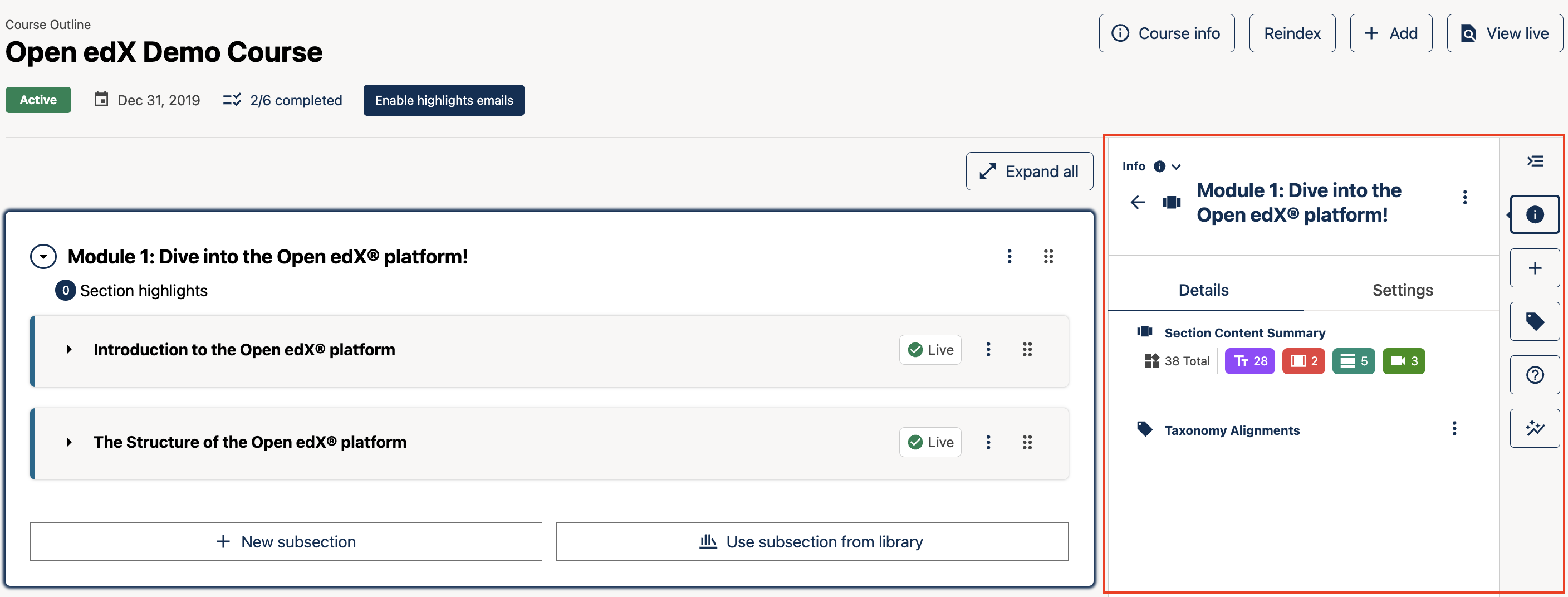
The Studio sidebar shows contextual details for the selected course item.#
The sidebar is resizable — drag the left edge to give it more or less space, and the main content area adjusts accordingly. Collapse it entirely when you want more room, and expand it again in one click.
The sidebar has multiple distinct views you can switch between:
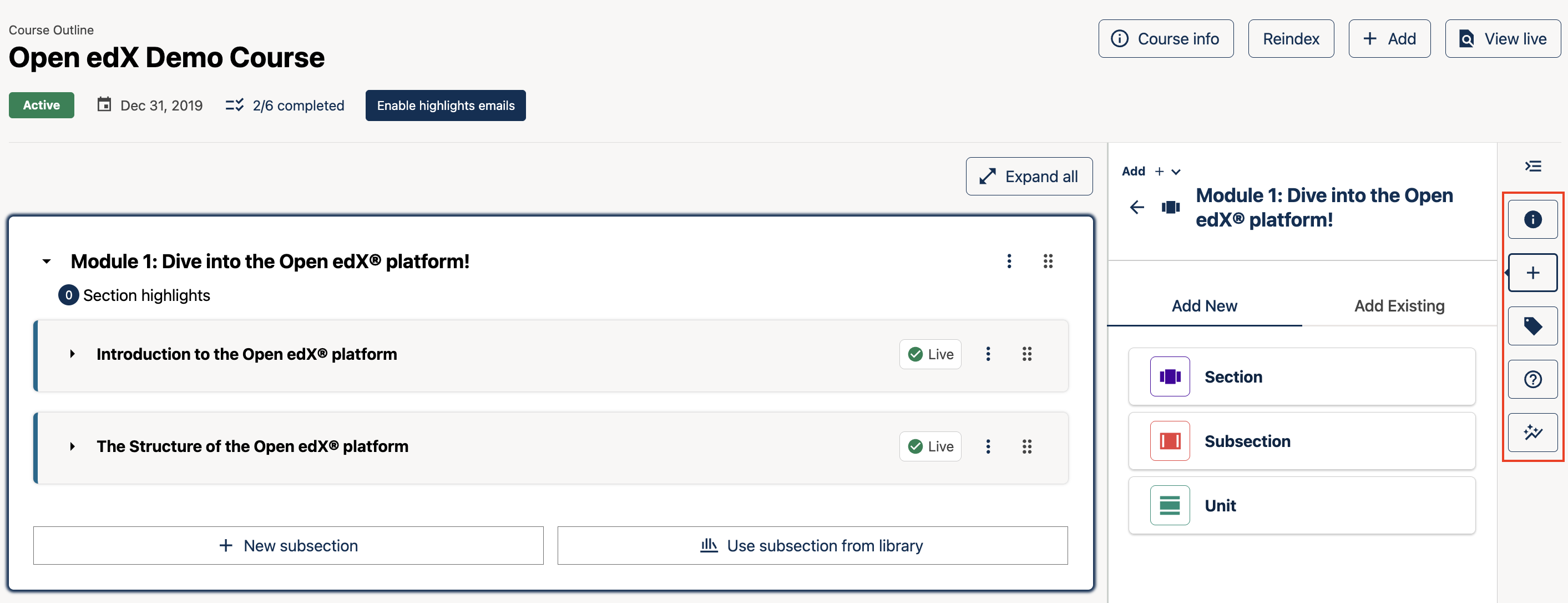
The sidebar can be switched between several modes.#
Info — an at-a-glance dashboard for the selected item. See content summaries (number of sections, subsections, units, or components), publish status, taxonomy alignment tags, release dates, grading type, visibility settings, and quick links to course settings — all without leaving the outline or unit page. On the unit page, a Preview tab also lets you see a rendered preview of any unit directly in the sidebar.
Add — add new content or pull in existing library components without disrupting your flow. Choose from component types like Text, Video, Problem, and more, or switch to the Add Existing tab to search and browse library content, preview components before adding them, and drop them straight into your course.
Align — apply and manage taxonomy tags and learning outcome alignments to any level of your course structure, from sections all the way down to individual components.
Help — access the helpful information previously displayed beside the Course Outline page without leaving the sidebar.
Analytics — if Aspects is enabled for your instance, access analytics about how learners are engaging with course material directly from the sidebar.
Items sourced from a library are clearly labelled as Library References in the Info view, and the Add sidebar intelligently hides add controls when you’re viewing a library-referenced unit where direct edits aren’t permitted.
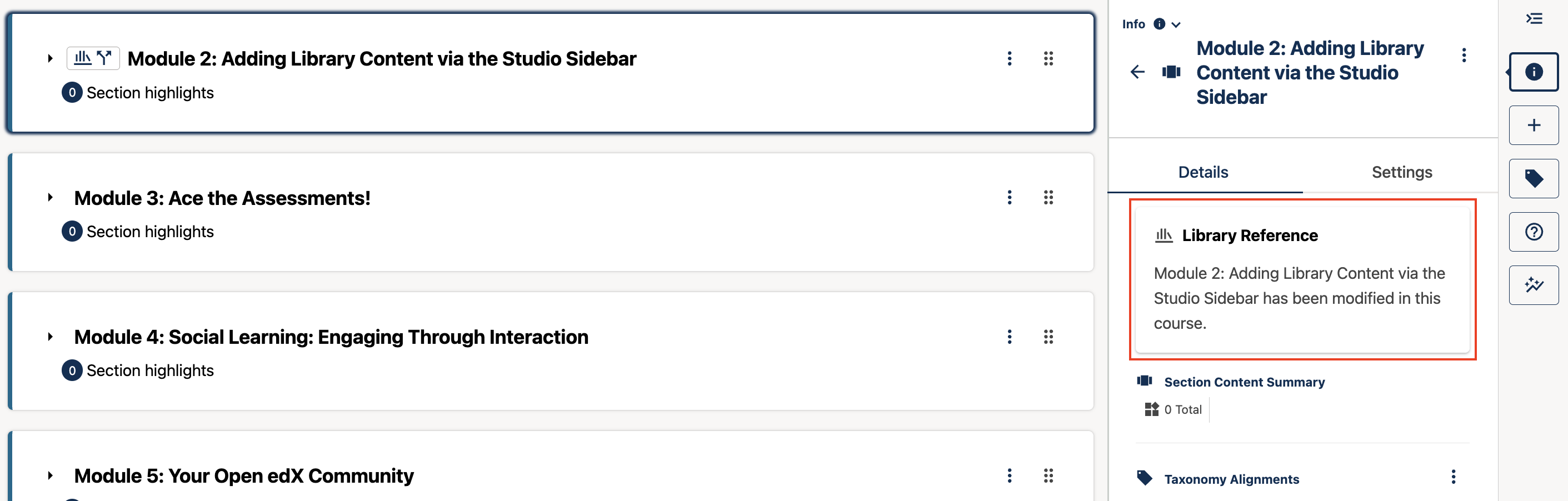
Library-sourced content is clearly identified in the sidebar.#
A kebab menu on each selected item gives you access to contextual actions — duplicate, delete, move, view in library, or unlink from library — right from the sidebar.
See also
Open edX Verawood Release - Product Release Notes (reference)
Open edX Verawood Developer & Operator Release Notes (reference)
Maintenance chart
Review Date |
Working Group Reviewer |
Release |
Test situation |
2026-07-30 |
Product WG |
Verawood |
Pass |